
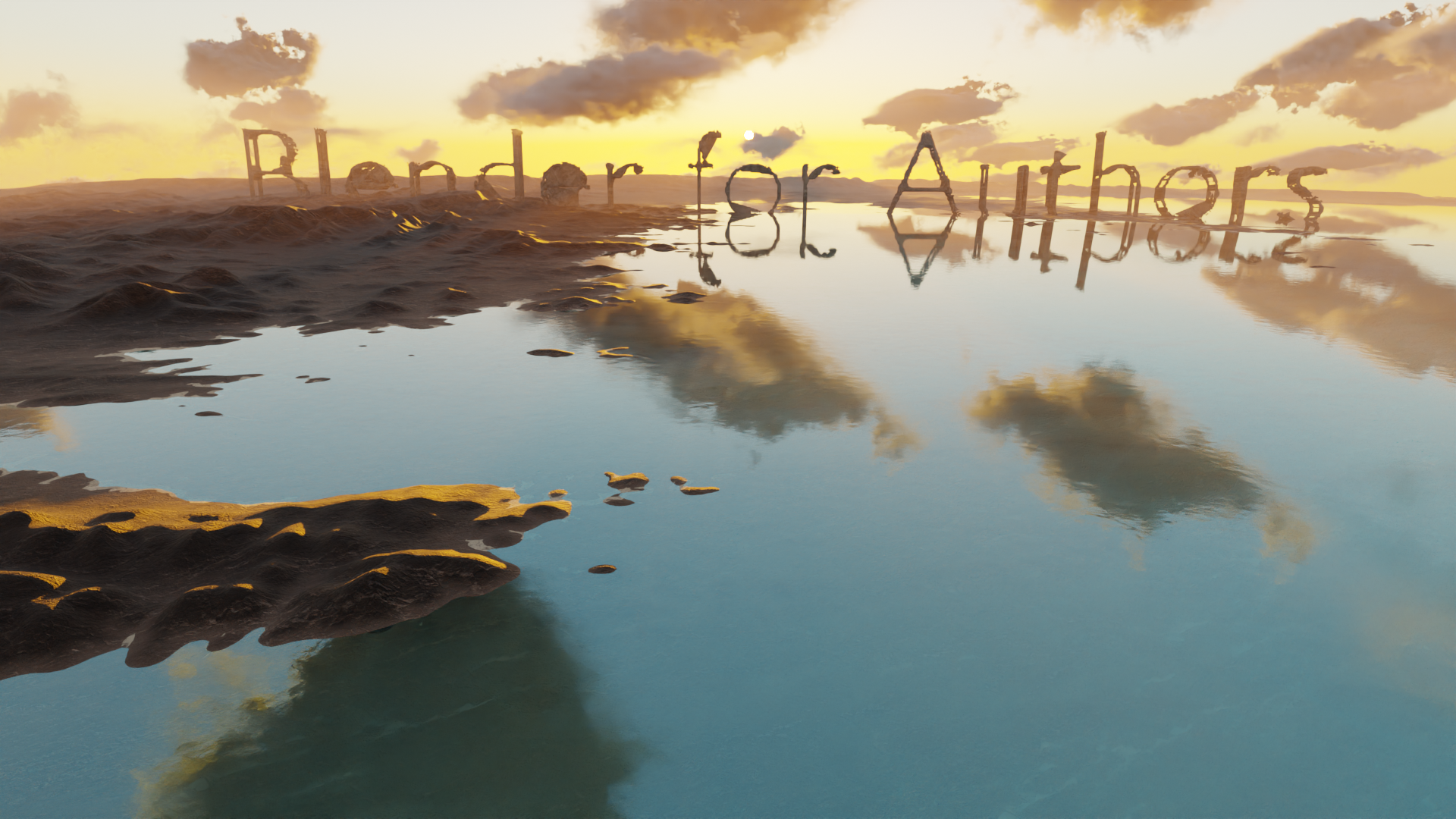
I decided to put together this little guide for other authors who wish to have more control over their creative workflows. I have been using Blender for over 6 years now and virtually every visual aspect of the Angelfyre was built using this powerful tool. Having the ability to bring our worlds and characters to life is something truly special, as the vast majority of authors will never see their works adapted into film or television.
This document is more intended for those that have very little experience with Blender or have never touched it before. If you are an existing Blender user, you may find some usefulness here, but you will likely know most of this already. I will be pointing to a couple of tutorials on YouTube for the various steps as we go along, and everything here is detailed around Blender 5.0, Daz Studio 4.24, and Diffeomorphic Daz import plugin 5.0.0.2736.
Toolsets
Blender

Blender is an open source 3D creation suite with the single largest community of creators in existence. This makes it a powerful tool as it boasts one of the lowest barriers to entry compared to other more commercial offerings such as Maya, Cinema 4D, or Houdini. Even though it is not yet considered “industry standard” within the production 3D & VFX community, it offers the same feature sets and performance of its commercial brethren. Get started by downloading it here: https://www.blender.org
Daz3D

Arguably the most mature and well supported character creation tool in the business. Daz3D has been around for over 20 years and has a large community of creators producing a massive amount content and assets that are accessible through a well-featured online shopfront and asset manager. Get started by downloading it here: https://www.daz3d.com
Diffeomorphic Daz3D Blender Import Tool
To get Daz3D assets into Blender, you’re going to need an import tool. The best one is produced by Thomas Larsson aka Diffeomorphic: https://diffeomorphic.blogspot.com/. There is a bit of a learning curve to this tool, but it is very comprehensive and powerful. Follow this YouTube guide on how to download, install, and use it: https://www.youtube.com/watch?v=J_Nz0-hLsMw
Other character generation tools
Daz3D is most certainly not the only character generation tool out there. For a run down of other available tools that work directly in Blender, watch this: https://www.youtube.com/watch?v=a-gEIaX4cYo&t=284s
Getting Started
First thing’s first: You WILL be overwhelmed. The blender community is a sheer juggernaut and there are some fantastically talented artists out there. You WILL feel unworthy. You WILL have imposter syndrome. Everybody does. But once you get through the basics, Blender is a blast. You will build worlds, and then you will get lost in them. You’ll be hooked for life, so be warned. Follow tutorials. Do fun stuff to keep yourself engaged. Don’t try anything too serious to begin with. Baby steps.
If you are new to Blender, I can suggest the infamous Donut Tutorial by Andrew Price aka Blender Guru. This tutorial will take you step-by-step from downloading Blender to creating full realistic world renders:
https://www.youtube.com/watch?v=z-Xl9tGqH14
When you are ready to move to the next level, use references. Try to rebuild scenes in Blender. Try to understand how to replicate real world lighting in Blender. Use a real camera with a real lens, then try and rebuild that photo in blender. If you want to truly master your skills, take part in render challenges and go up against the best of the best. My absolute favorite blender challenge is by Clint (Pwnisher): https://www.youtube.com/@pwnisher. (Mind blow warning: The winning artists who take part in this challenge are phenomenal.)
On hardware requirements, it’s true that a solid graphics card will ease your workflow considerably, but Blender is not dependent on it. You need a decent modern-day spec PC (Quad core, 8gb ram) to get going. A graphics card is a good idea, and you can pick up a second hand GTX1070 or GTX1080 and they’ll work just fine. Blender has better support for NVIDIA cards, but AMD and INTEL work just fine and their support is on the up.
Using Blender in your author business
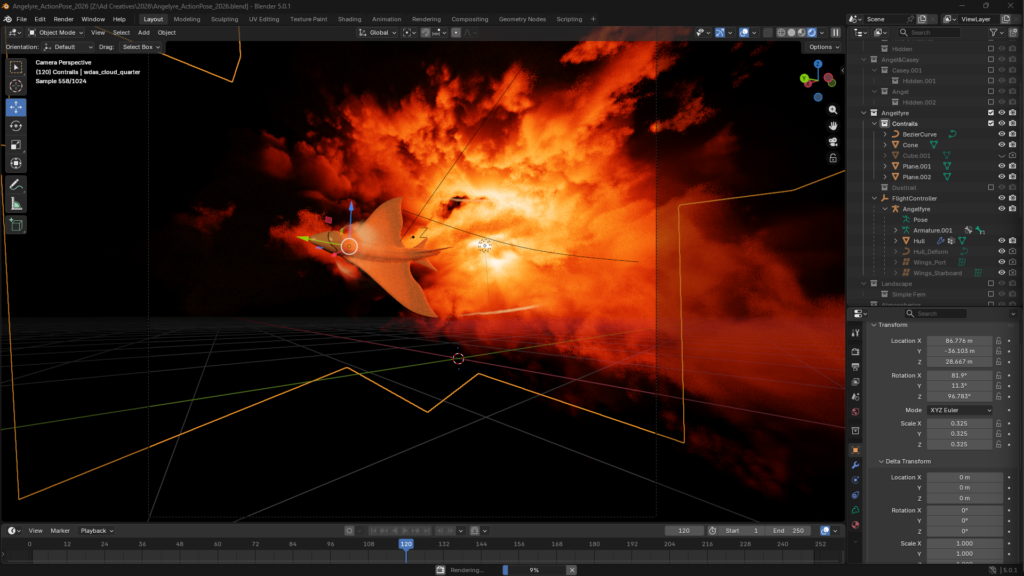
The key to using Blender as a tool to craft your universe is all about building an asset library of your world – models, meshes, materials, volumes, characters, poses, scenes. It is all about building your story’s instantly recognizable signature. It’s all about building a visual representation of your brand. Compared to the traditional stock image route you now have the power to reposition camera’s, change focal lengths, recompose scenes, change lighting, even subtly, and it completely changes the character of the output.
Blender is also fantastic at helping you visualize challenging scenes. Scale can be difficult to comprehend for both authors and readers, and camera focal lengths are very handy to demonstrate scale. Lighting and volumetrics are great for cinematic storytelling. Building maps in 2D and 3D, or even 4D is a breeze. Imagine a world that is constantly changing, as though every continent or island was floating in the sea and moving around all the time (Hyperion reference). Blender can visualize that for you.
Worked example: Blender and stock images
Most independent authors will already have a library of stock images on hand, so the fastest way to get going is to bring these into blender. Here I’m going to use a stock image I had as an example, something typical for building book covers.

We fire up blender, select the default cube in the center of the workspace and hit delete, then select the Add menu option, then Mesh, and then Plane.
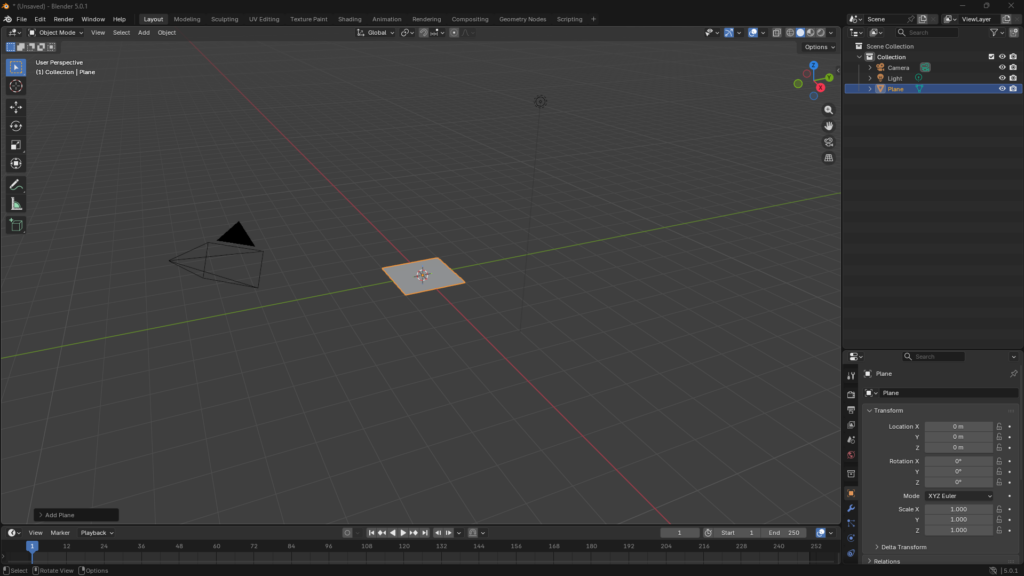
With the plane selected, go to the Shading tab on the very top of the screen. At the top of the Shader Node window below the viewport window, select New.
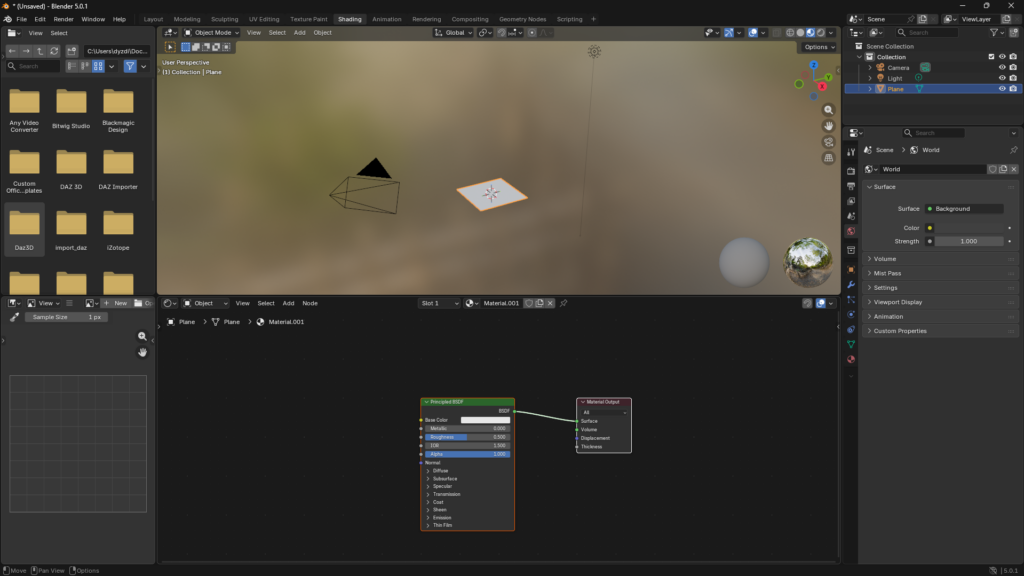
In the top left browser window, find your image and drag it onto the bottom right node window, and it will appear as an image texture node. If you connect the Color from the image node to the Base Color of the Principled BSDF node, you’ll see the image appear on the plane.
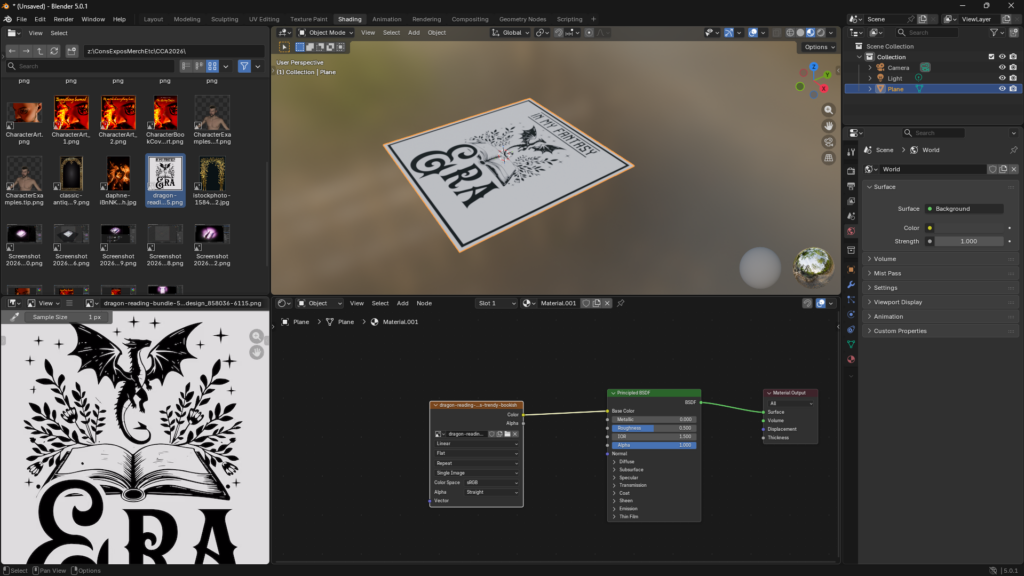
A good start, but a bit boring, so lets do something interesting. Disconnect that link and set the Base Color to black. Then go Add – Color – Color Ramp, and connect the Color output link to the Factor input of the Color Ramp node, then the Color output of that node to the Alpha input link of the Principled BSDF Node. In the Color Ramp node, grab the white slider and move it to the middle of the ramp.
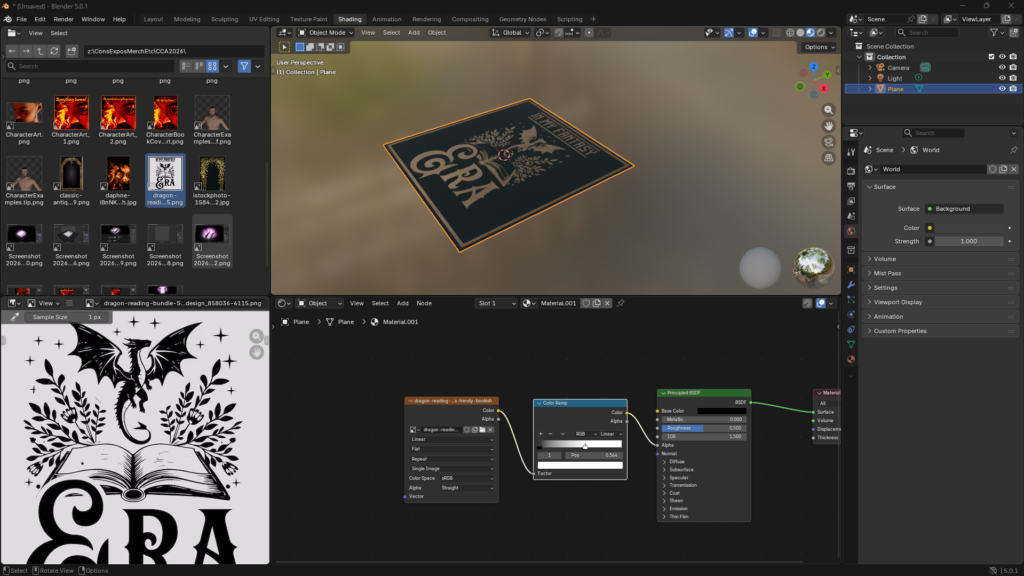
What we just did here was “cut out” the black letters of the input image, so we now have a “stencil”. Now let’s do some lighting. Go back to the Layout tab and select the rendered view (top right of the viewport, the rightmost icon that looks like a bubble). You’re also going to want to switch to CYCLES rendering here. On the bottom left hand pane (properties panel), select the tab that looks like the back of a digital camera, select CYCLES in the Render Engine dropdown list, and GPU Compute in the device (CPU will also work, just slower).
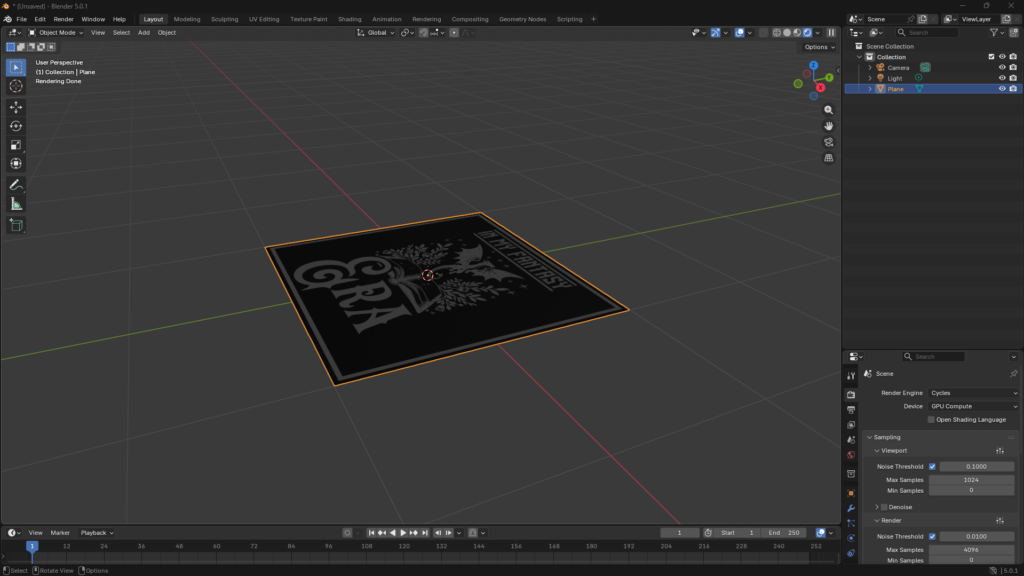
Lets make a back light to start. Select the plane and then hit Shift-D to duplicate it and hit the right mouse button to drop the duplicate in place. Select the Move option in the left-hand navigator menu (the four cardinal arrows icon), then click on the blue manipulator arrow (Z axis) and drop the new plane just below the other.
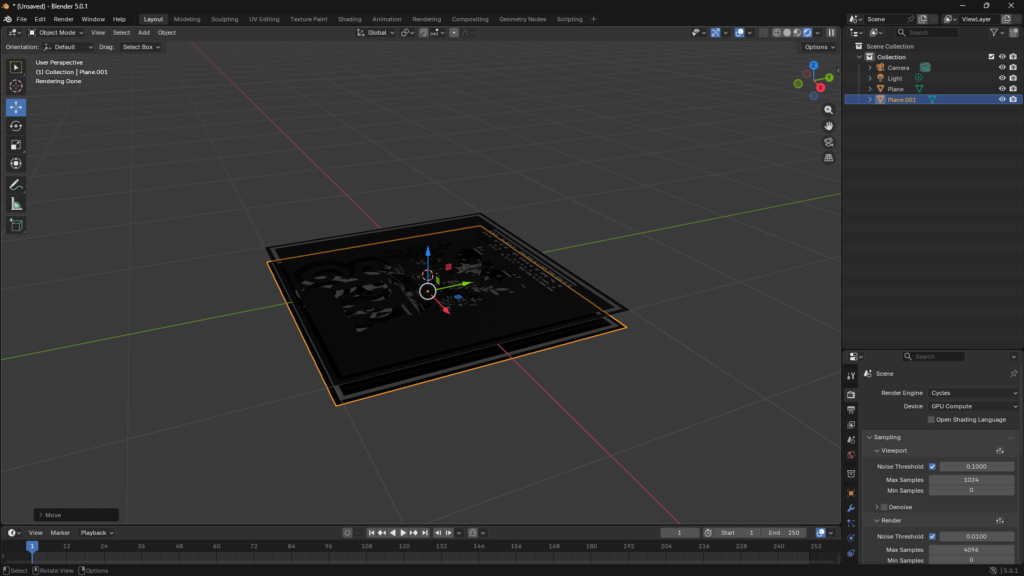
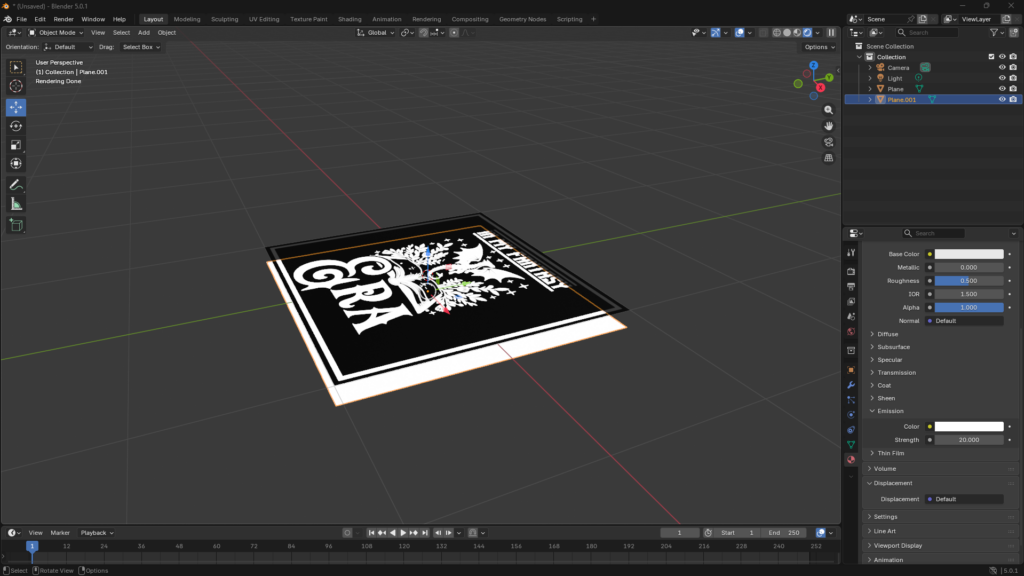
Now lets get a new shader on that plane. Select the Material tab (a round ball with a checker pattern) on the properties panel, select Material.001 and then the minus ( – ) button. Select New, set the Base Color to black and Roughness to max (1). Open the Emissions option and set the Strength to 20.000.
Now for a volumetric lighting trick. Go Add – Mesh – Cube. Material tab, New, select the new material, on the Surface subpanel, click on Principled BSDF, and in the options dropdown that appears, select remove. The cube should turn pitch black. Now, open the Volume subpanel, click on None in the Volume selector, and then select Volume Scatter. Select our new Volume cube and lift it up so our panes are at the bottom.
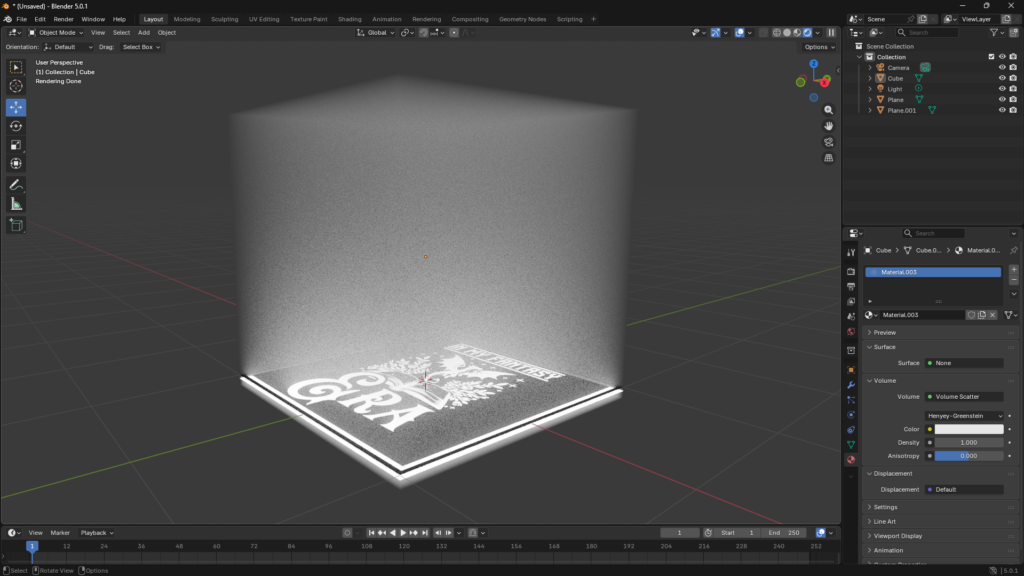
Set the Density option down to, say, 0.02. The smogginess should clear mostly. Now select our lighting plane, go the the Object Properties on the properties panel (square focus target icon), open up the Visibility subpanel, then unselect Shadow under Ray Visibility. Now, Add – Light – Spot. Hit R on your keyboard, followed by X, and then type in 180, hit enter. Hit S, then 0.2, Enter. Hit G, then Z, then -2, Enter. Select the Bulb tab on the properties panel, then set the color to purple, and Power to 100 000, and something magical happens…
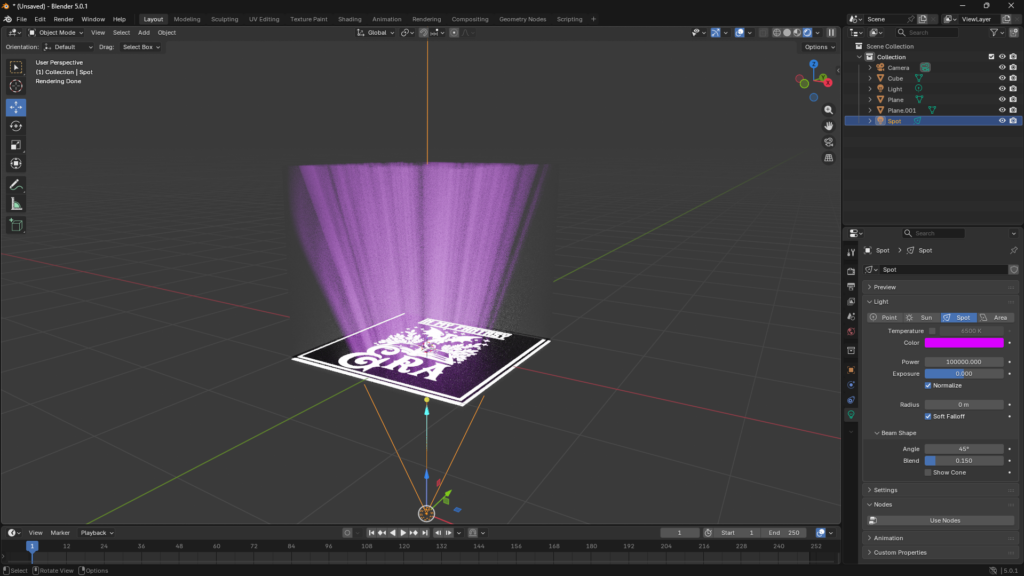
If you grab the blue (Z-axis) manipulator of the Spot and move it up and down, you can fine tune the light rays. You can also play around with the intensity and color settings. We should get rid of the world lights in the scene at this point, so select the World tab (little planet icon) on the properties panel, and set the color to black. Now, we want a little bit of fall off in the rays so they don’t stop suddenly at the boundary of the cube, so we need a gradient node. From here on out I assume you are comfortable in finding the various nodes, so I am just going to show the node trees. Here, use a Gradient Texture Node with a Color Ramp node, and a Math Node to control the density of the volume. We also need a Texture Coordinate node and a Vector Mapping node (these can be quickly added using the node wrangler in the blender options menu and Ctrl-T on the keyboard). Adjust the Location inputs in Vector Mapping until the beam is centered (usually -0.5 for both X and Y, 0 for Z). Crank up the light power to 500 000.
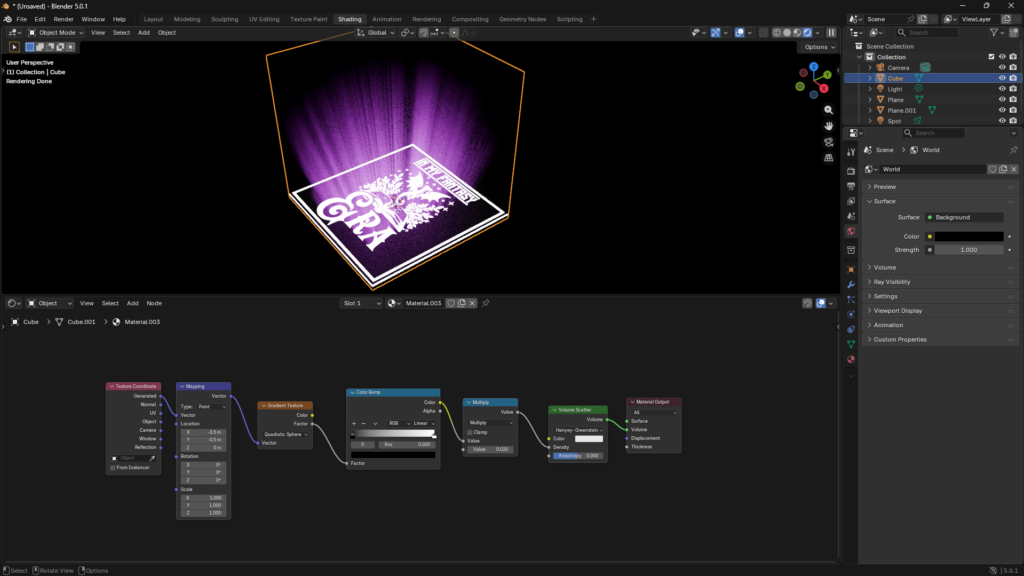
Spend a bit of time playing around and adding different layers and you can get something like this to use in your ad creatives or book cover art…
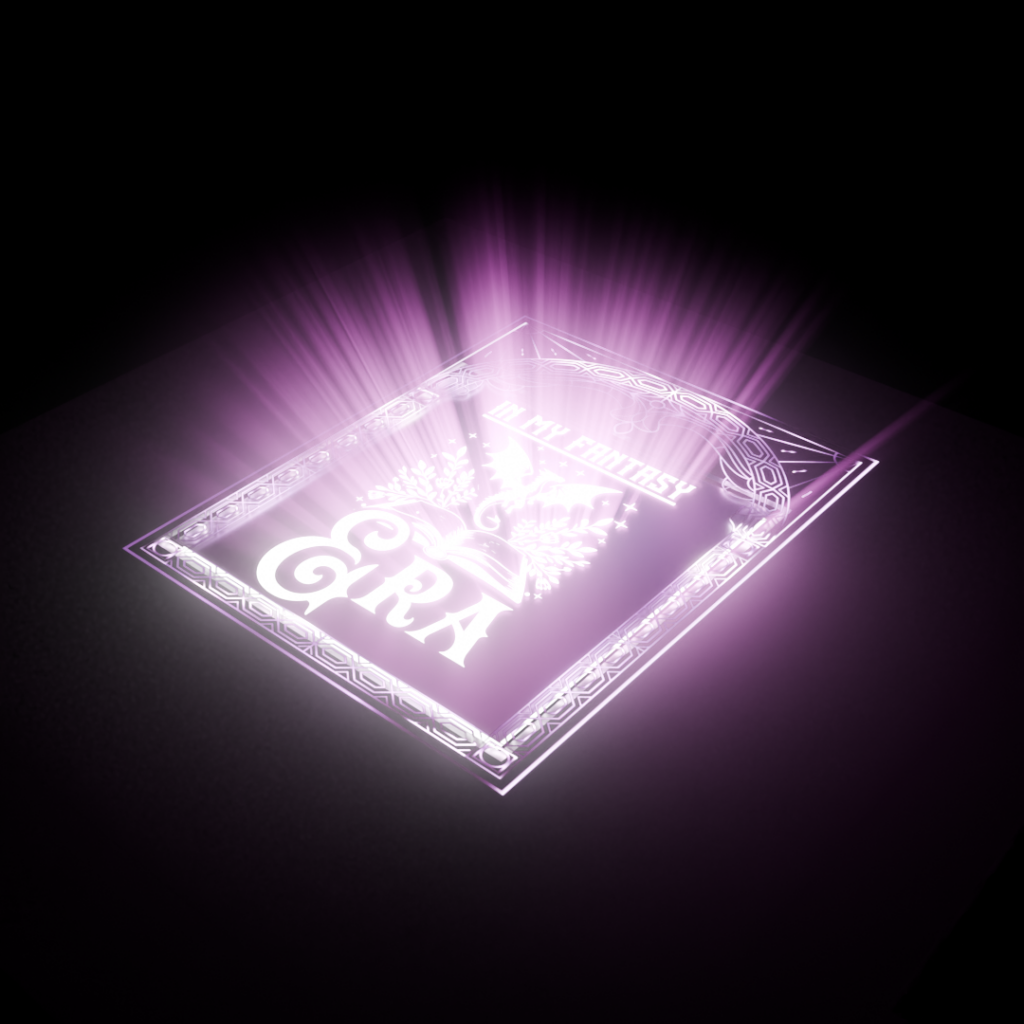
Worked example: Bringing Daz3D characters into Blender
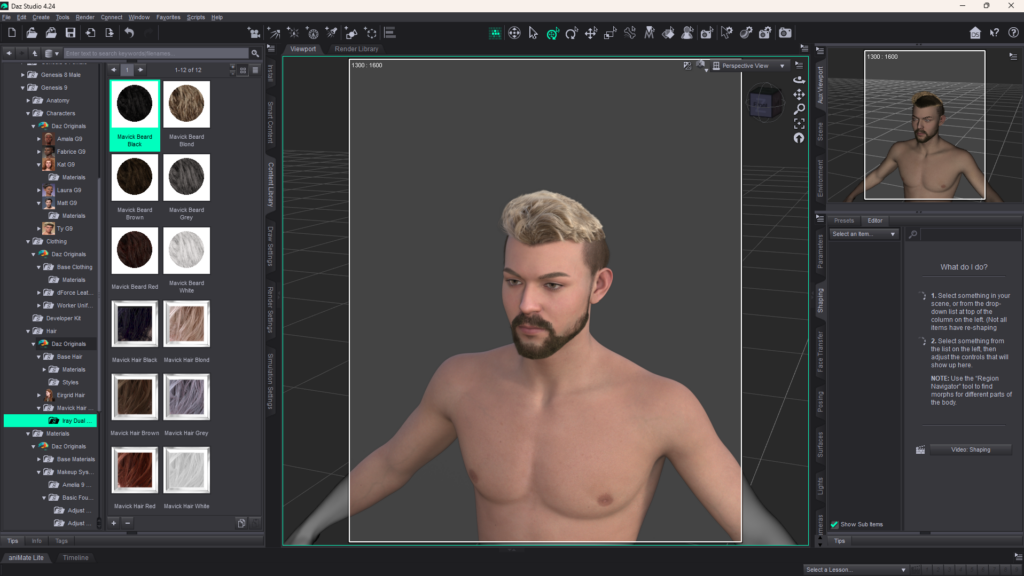
I’m assuming you have installed the Diffeomorphic Daz3D import tool into Blender and Daz Studio. Get a character ready in Daz Studio here: https://www.youtube.com/watch?v=zNjVLcqQWBU. In this example I’ve kitted out the Matt Genesis 9 character with hair and a beard. Save the scene, then select Edit in the main menu and Diffeomorphic Daz Importer. Give it some time, it takes a while for it to prep the files. You should get a confirmation everything is good.
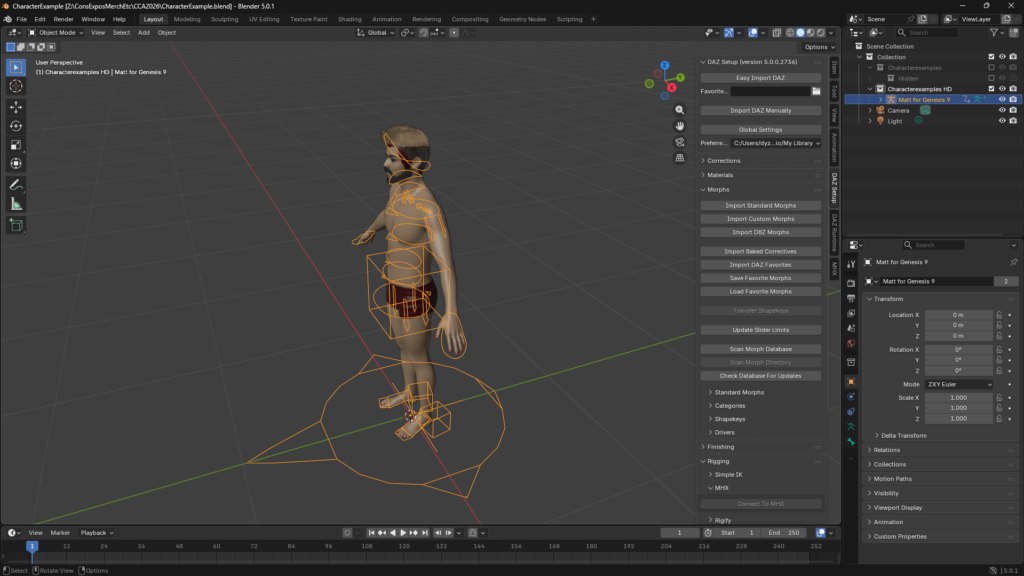
Fire up blender and start with an empty scene. Open the DAZ Setup menu on the right of the viewport (Sidebar or N-Panel) and Easy Import your character. This part takes a good couple of minutes, so hang tight. Once your character is in, go to Morphs and Import Standard Morphs, then select Face Units, Expressions, Visemes, Head, FACS, FACS Details, FACS Expressions, then OK. Finally, for posing, select Rigging and then MHX, then select Convert To MHX, select OK.
Pose the character’s head (using the Pose view). Switch to CYCLES rendered view and position the camera to the face, then select Daz Runtime on the sidebar menu and adjust the appropriate FACS Brow Inner Down sliders for an intense expression…
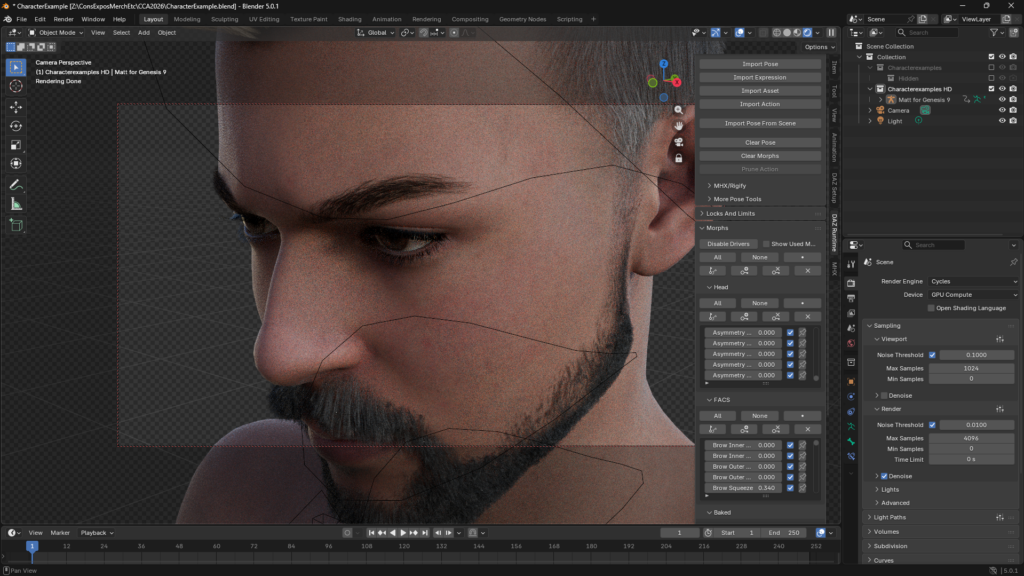
Remove the world lighting, add a light source, give it a warmer colour and move it around to create a shadowing effect…
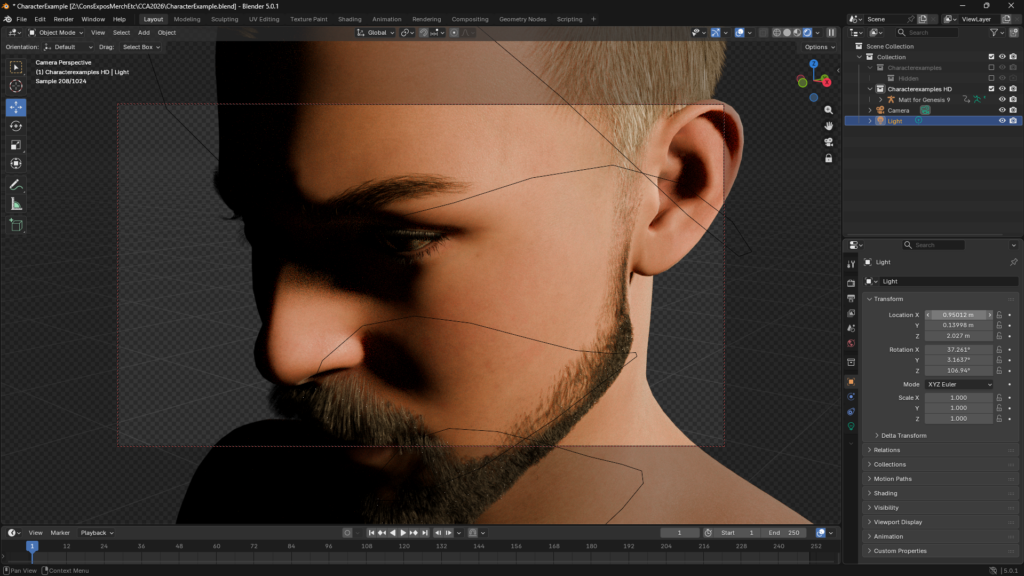
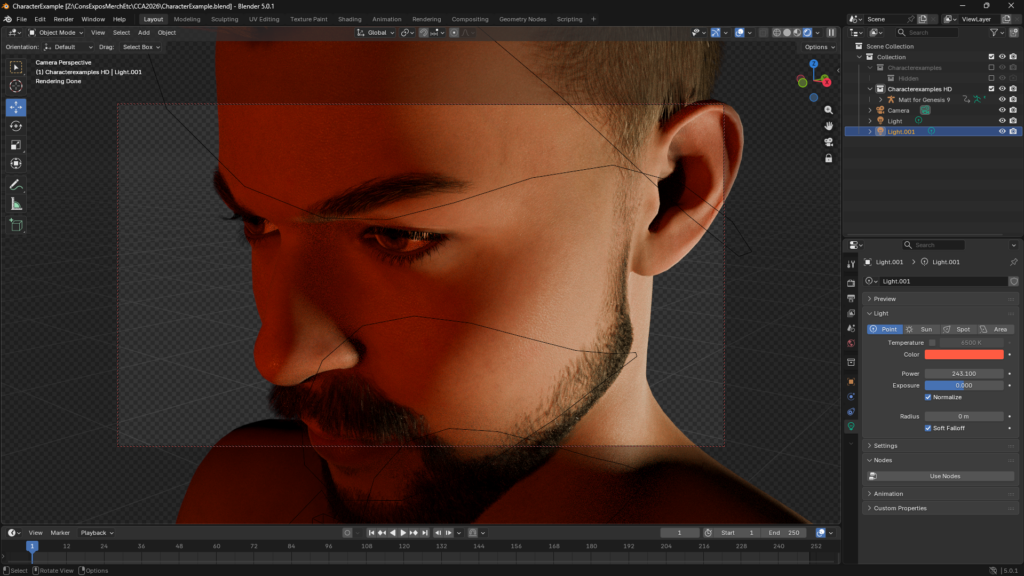
Add a second light source and adjust its color to simulate a nearby fire…
Save the blender file to a new location. Now lets add a tattoo around the left eye. For this, we need to make sure all of the materials for the figure are in the same directory as where you saved the Blender file. In the File menu, select External Data, Automatically pack Resources. Save the blender file. Then go back to this menu, and select Unpack Resources.
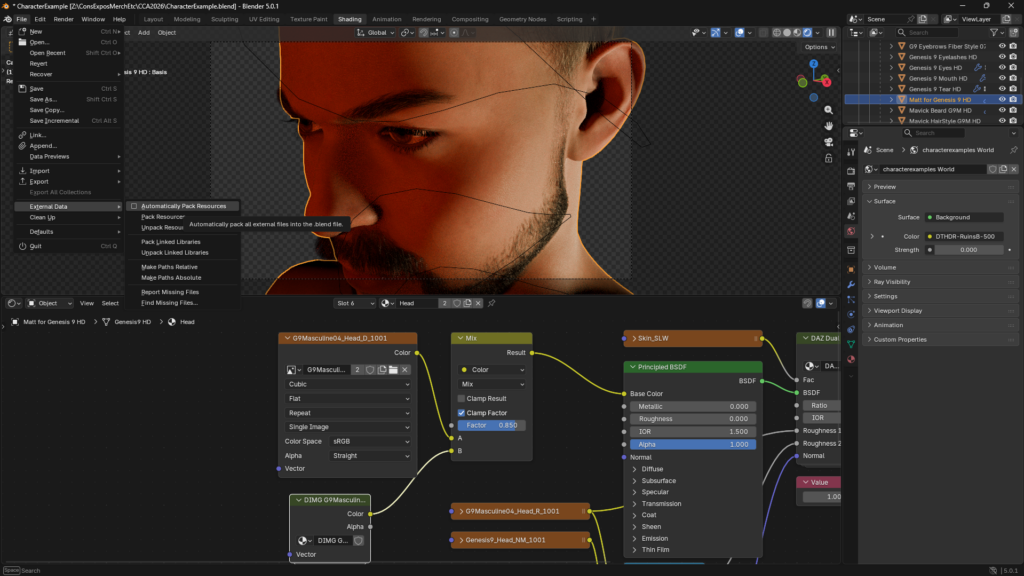
Go to the directory you saved your blender file, open the textures directory and open G9Masculine04_Head_D_1001.jpg (Base colour image file) and G9Masculine04_Head_SSS_1001.jpg (Subsurface scattering file) in your favorite image editor. Do some editing magic and add a layer for your tattoo around the eye or on the face. Put both of these images into separate layers and save each as their own file to ensure the tattoo is precisely aligned in both textures.
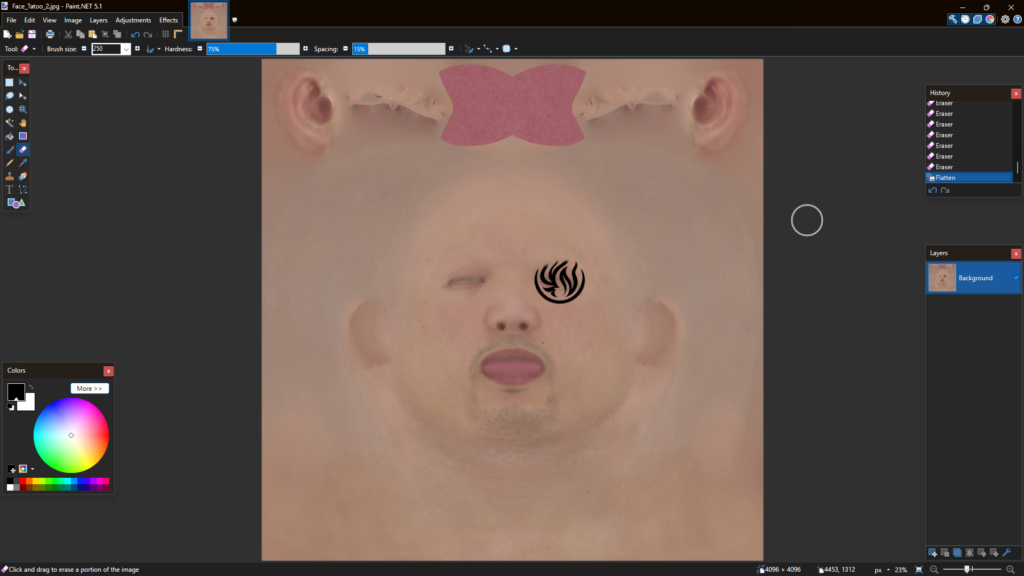
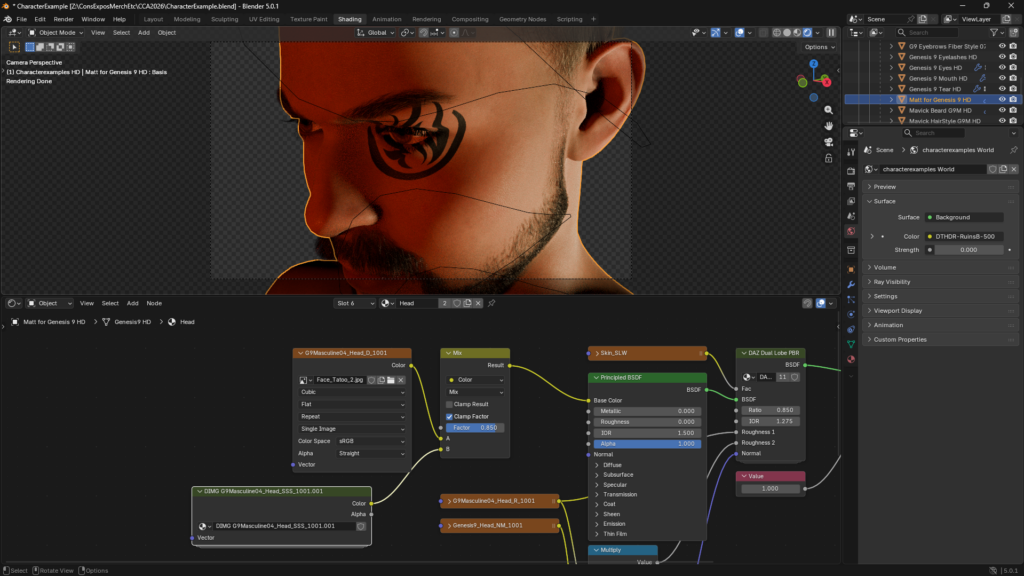
Go back to blender, select the character and go to the Shading tab. In the Slot drop down of the node panel, select Head (slot 6). On the far left, select the image node and load the new tattooed image for G9Masculine04_Head_D_1001, then double click on the DIMG node beneath it, and do the same for G9Masculine04_Head_SSS_1001.
Now render the output…
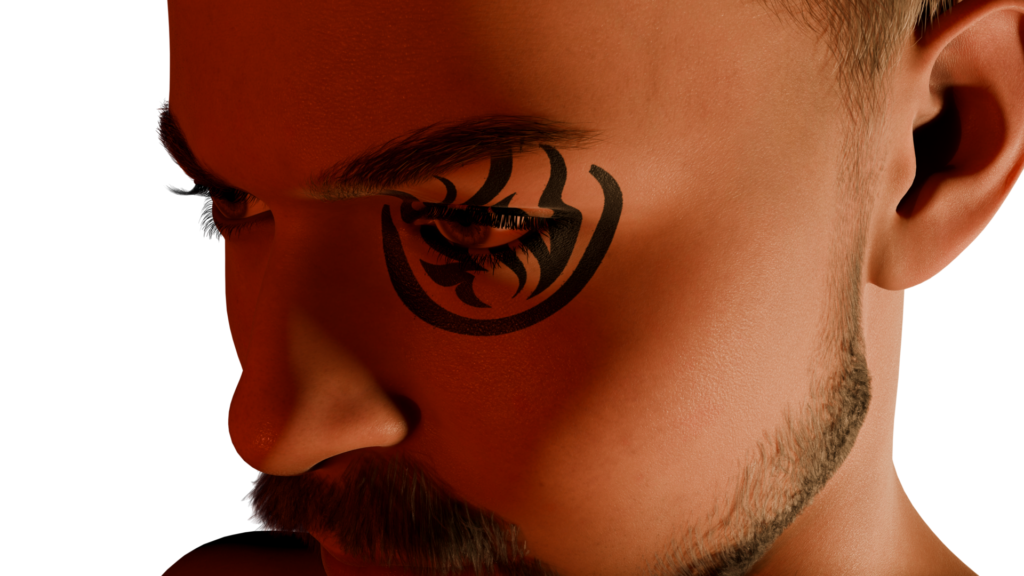
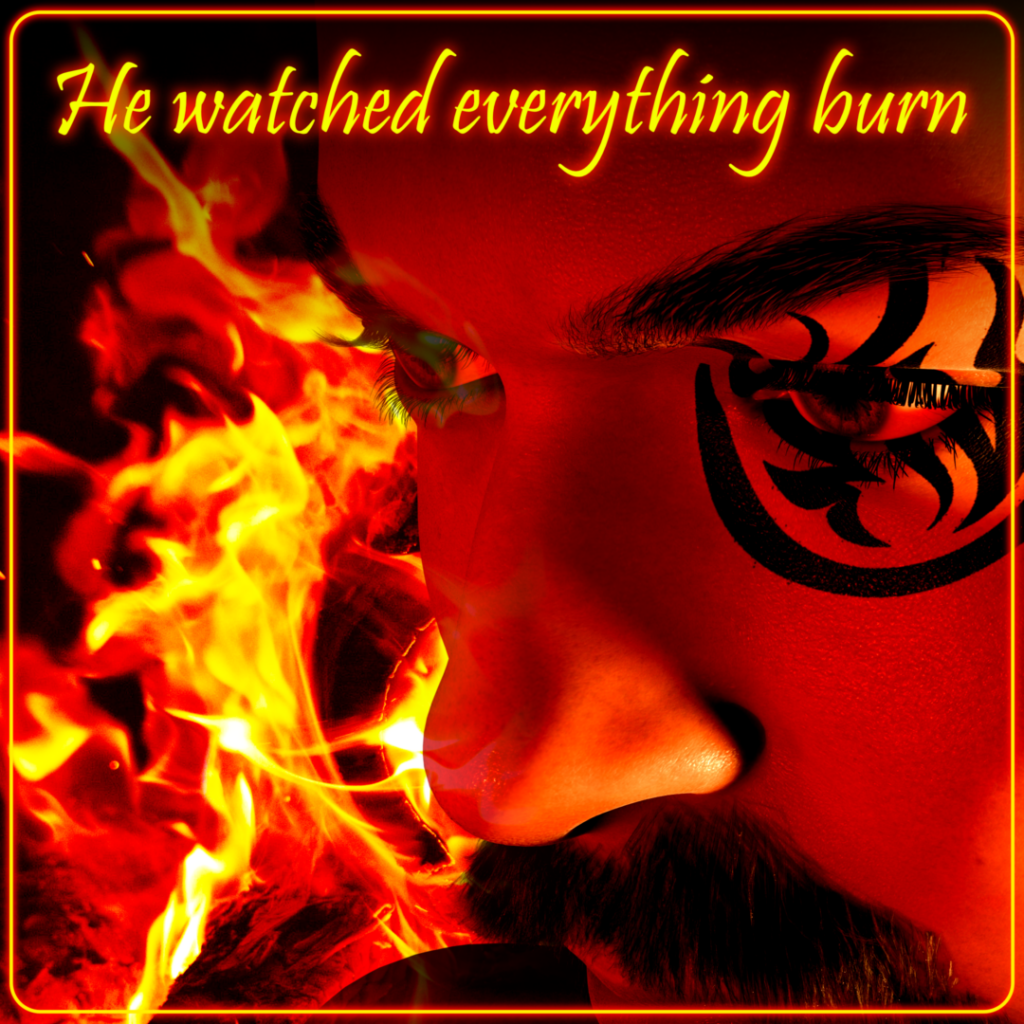
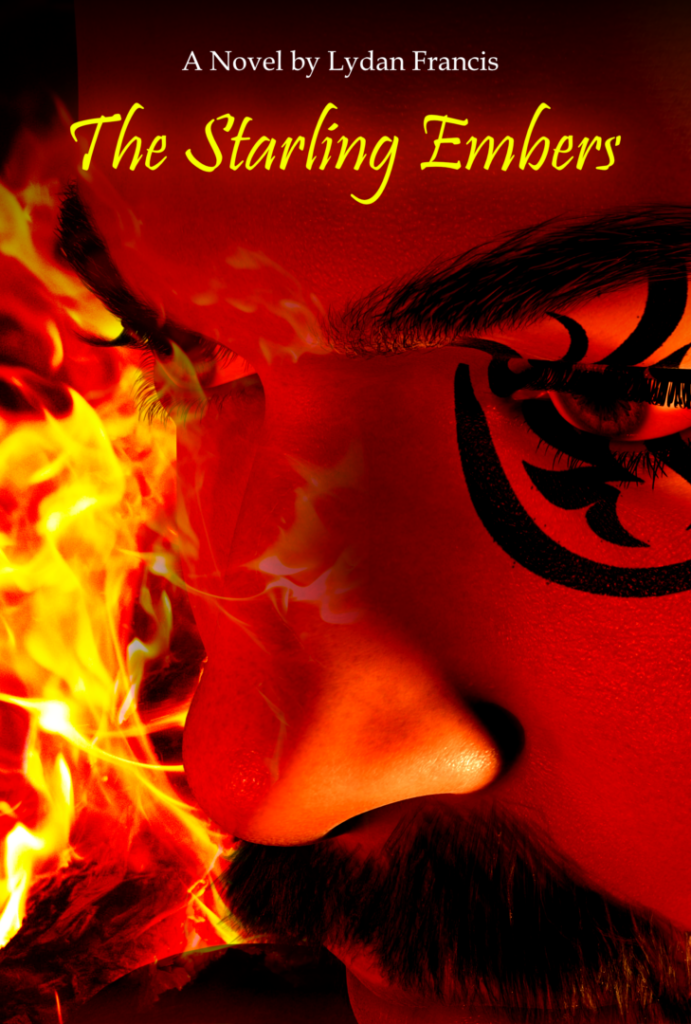
Load the new file in your image editor, grab a stock image of a flame, work the color a bit and do some compositing magic…
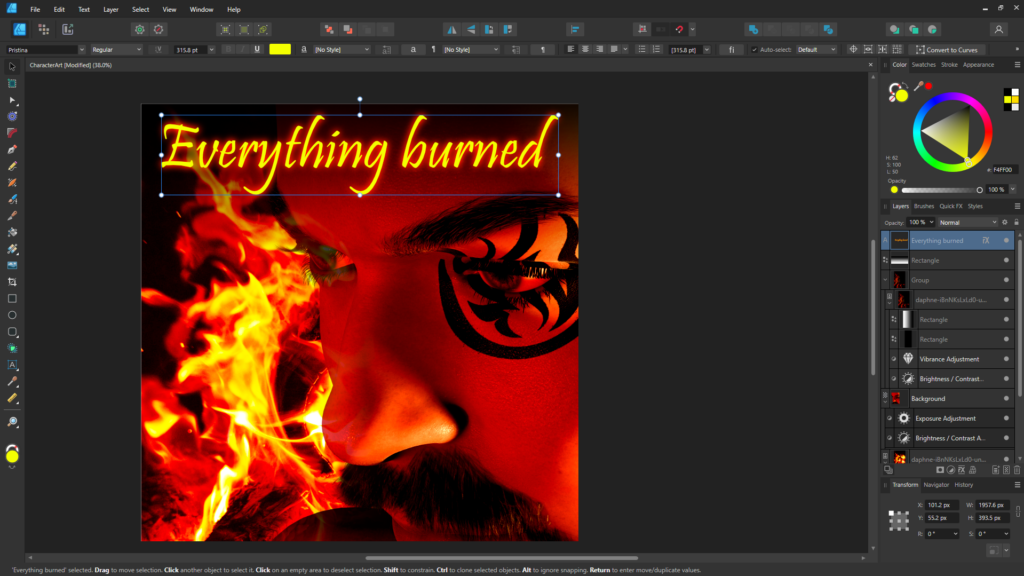
Then format for your scroll-stopping ad creative…
Or your eye-catching book cover…
Final words
Once you have a handle on the basics, its only to the stars from here. You can move onto animations, building out extensive scenes, or even using camera motion tracking and VFX compositing to integrate real-world video and scenes.
And please remember to support artists by purchasing assets from time to time rather than scratching around for freebies, and definitely avoiding any and all generative AI for your artwork.
Keep it Human Made.
Cheers!
– Lydan
I would really love to keep in touch, so if you haven’t already, please consider joining my newsletter.